

Outlook for Mac Without a Subscription: Your Options in 2026
Yes, you can use Outlook for Mac without a Microsoft 365 subscription. The app is free for supported personal email accounts, with ads. If you’d rather skip the ads, an eligible one-time Office license can activate an ad-free Outlook. And if you need Outlook for work or prefer a one-time purchase, Office Home & Business 2024 for Mac is the option to look at.
Here’s how to pick the right version, install it, and activate it correctly.
Is Outlook for Mac free?
Yes. Microsoft offers Outlook for Mac as a free download from the Mac App Store. It works with personal Outlook.com, Gmail, iCloud, Yahoo, and IMAP accounts, and you don’t need to buy Microsoft 365.
This is the installed desktop app, not Outlook in a web browser. Microsoft’s Outlook for Mac licensing guide confirms that personal accounts can use the free app, and Microsoft’s Outlook for Mac page explains that the free version is supported by ads.
For personal email on your MacBook, you don’t need to buy extra software.
Free doesn’t cover every account type, though. Microsoft 365 work and school accounts follow separate licensing rules, and some organizations assign plans that include only the web and mobile apps.
Does Outlook for Mac require a Microsoft account?
Not for your email. The free app works with several personal email providers, including Gmail and iCloud, so you can keep your current address instead of switching to Outlook.com.
If you buy a one-time Office license, you’ll activate it with the Microsoft account linked to that license. Your mailbox in Outlook can still be a different address.
What can the free version of Outlook for Mac do?
The free version of Microsoft Outlook for Mac covers the core email and organizing tools most people use every day. Microsoft describes it as a native app designed for macOS.
With a supported personal account, you can send and receive email, check your calendar, manage contacts, and search your messages. On its official Mac product page, Microsoft highlights Focused Inbox, message snoozing, flags, swipe gestures, themes, dark mode, and a calendar view right from your inbox.
You can add more than one personal inbox to the free app. Compatibility depends on your Mac and its macOS version.
What are the limitations of free Outlook for Mac?
The main trade-offs come down to ads, account licensing, and support:
- Ads: Microsoft shows clearly labeled ads for free personal accounts. A Microsoft 365 Personal or Family subscription, or activation with an eligible one-time Office license, gives you an ad-free experience.
- Work and school licensing: A Microsoft 365 work or school account usually needs a license that includes the desktop apps. An account that works in a browser isn’t automatically licensed for Outlook on macOS.
- In-app Microsoft support: Microsoft’s Contact Support instructions say the free version doesn’t include the Contact Support option in Outlook’s Help menu.
- Subscription extras: The free app doesn’t include the extra storage, advanced email security, and other services that come with a paid Microsoft 365 plan.
If you’re fine with ads, free Outlook works well for personal email. If you want ad-free Outlook without recurring payments, a one-time license is worth a look.
How does free Outlook compare with Outlook activated by an Office license?
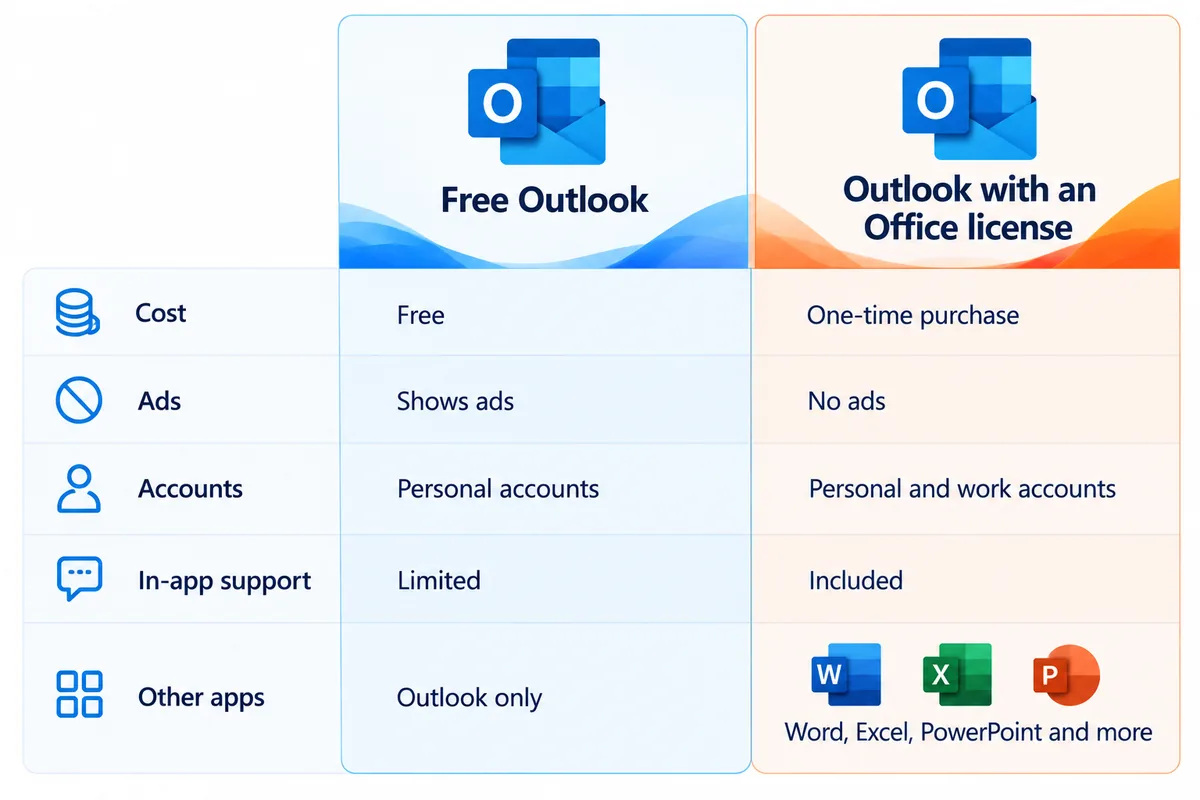
Both routes give you the Outlook desktop app on a compatible Mac. The difference is how Outlook is licensed and what comes with it.
| Feature | Free Outlook for Mac | Outlook with Office Home & Business 2024 for Mac |
|---|---|---|
| Payment model | Free for supported personal accounts | One-time software purchase |
| Microsoft 365 subscription required | No, for supported personal accounts | No |
| Ads with personal accounts | Yes | No, once an eligible license is activated |
| Outlook email, calendar, and contacts | Yes | Yes |
| Personal Outlook.com, Gmail, iCloud, Yahoo, IMAP | Supported | Supported |
| Microsoft 365 work or school accounts | Desktop licensing rules apply | Can add other accounts after qualifying activation, subject to organizational rules |
| Word, Excel, PowerPoint, and OneNote desktop apps | Not included with the free Outlook download | Included; Microsoft says the license installs on one PC or Mac |
| In-app Contact Support | Not available in the free version | Available with a license, when Microsoft’s support conditions are met |
| Future major Office versions | Doesn’t apply to the free Outlook download | Not included with a one-time Office purchase |
Sources: Microsoft licensing guidance, Outlook advertising FAQ, and Office 2024 editions.
The cost of Outlook for Mac depends on the route you choose: free for personal use, a Microsoft 365 subscription, or a qualifying one-time Office license. An Office license doesn’t include an email mailbox or Microsoft 365 cloud services.
Can a one-time license activate Outlook for work email?
Microsoft says a Microsoft 365 work or school mailbox normally needs an assigned license that includes the desktop apps. It also describes another route: activate Outlook with a qualifying personal one-time Office license, then add your other accounts. Your organization’s account settings and access policies can still apply.
If your work or school plan blocks desktop access, ask your IT administrator about licensing. Microsoft also notes that you won’t see ads on work or school accounts.
How do you download Outlook for Mac?
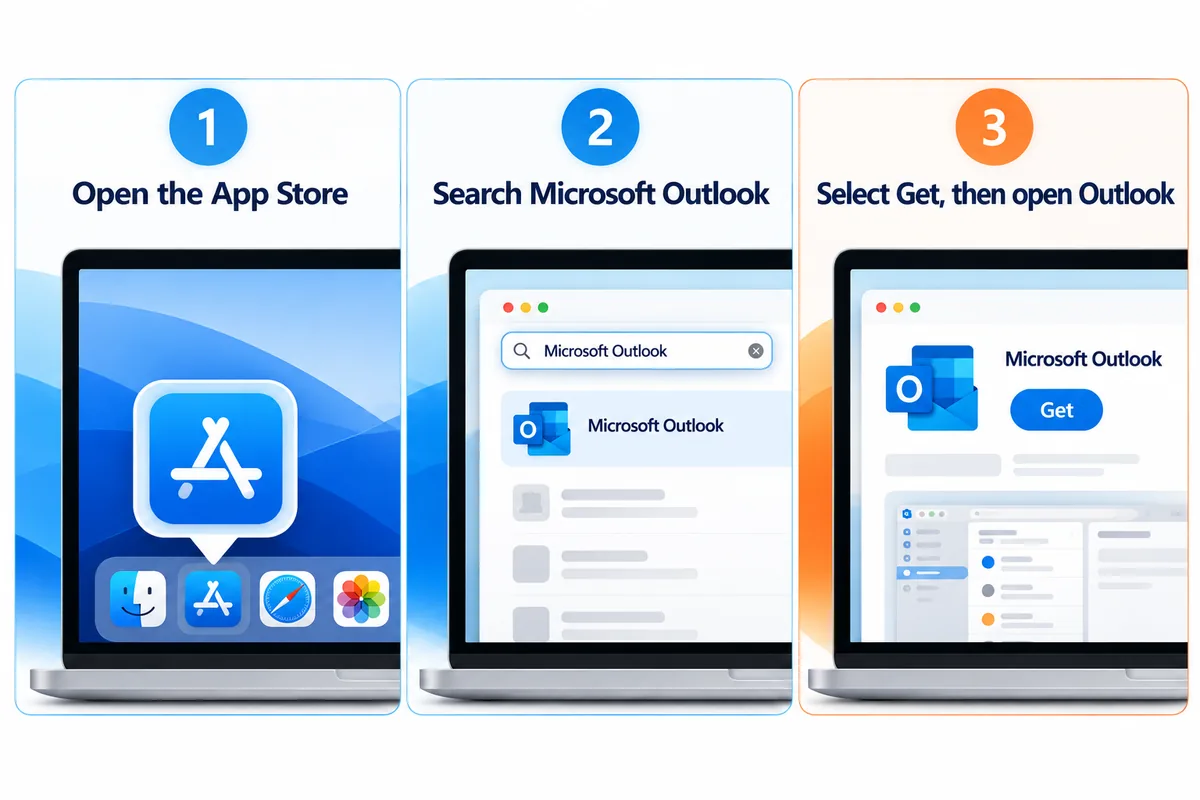
For personal email, you can download Outlook for Mac from the Mac App Store without buying Office. The App Store gives you the latest version of Outlook for Mac.
- Open the Mac App Store. On your MacBook or desktop Mac, open the App Store app.
- Search for Microsoft Outlook. Check that the developer is Microsoft Corporation and not a third-party app with a similar name.
- Select Get or the download button. Follow the App Store prompts to install Outlook.
- Open Outlook. You’ll find Microsoft Outlook in your Applications folder or Launchpad.
- Add a personal email account. Enter your Outlook.com, Gmail, iCloud, Yahoo, or supported IMAP address, then follow your provider’s sign-in and permission prompts.
- Check your inbox and calendar. Make sure your messages and other account data show up. Add another personal account if you need one.
You can also download Microsoft Outlook for Mac from the link on Microsoft’s download page.
Can you download Outlook for a MacBook Air or MacBook Pro?
Yes, as long as your Mac meets the app’s requirements. Microsoft Outlook for Mac runs on compatible Apple laptops and desktops, so there’s no separate “Outlook for MacBook Air” or “Microsoft Outlook for MacBook” product to hunt for.
To check your macOS version, go to Apple menu > About This Mac. If you’re planning a one-time Office purchase, see our Office 2024 for Mac system requirements guide.
Important: The Mac App Store steps above are for free Outlook. If you plan to activate a one-time Office purchase, follow the next section instead. Microsoft says one-time Office licenses work with apps downloaded directly from Microsoft, not Office apps from the Mac App Store.
How do you activate Outlook with a one-time Office license?
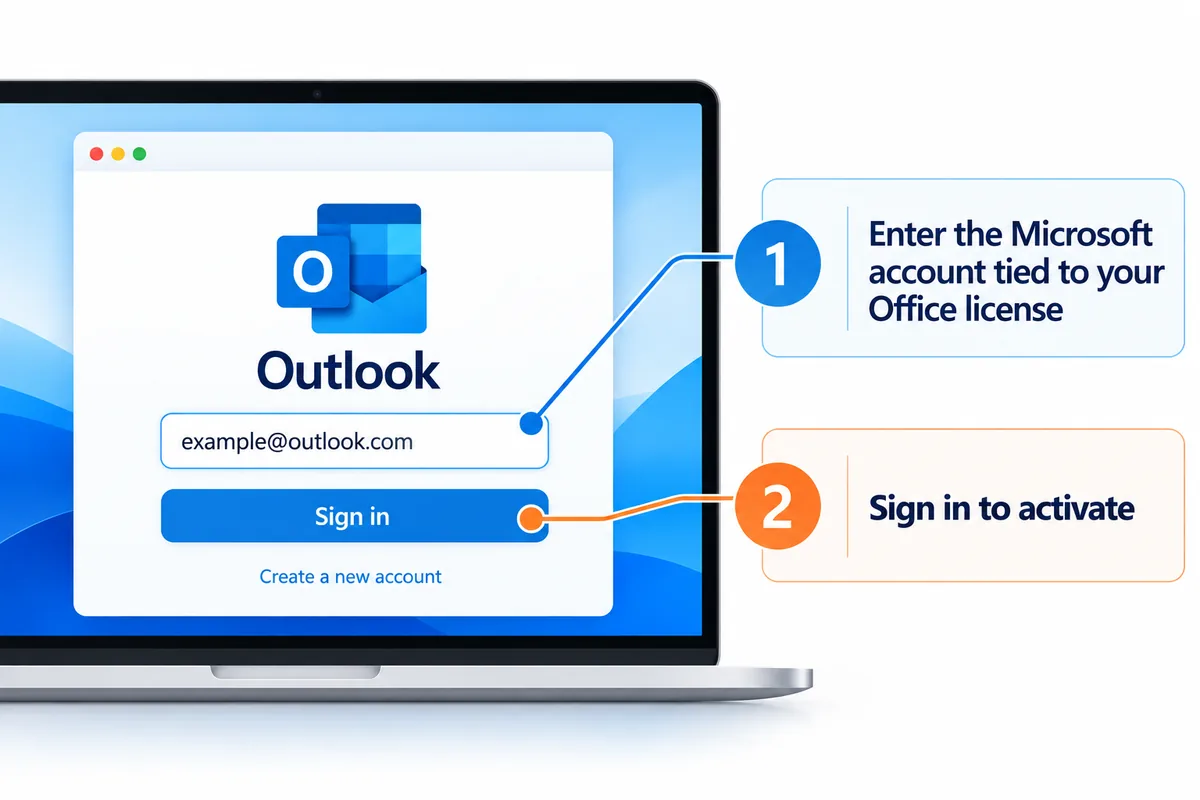
If you want Outlook without recurring Microsoft 365 payments and without ads on personal accounts, buy an eligible Office edition that includes Outlook. On a Mac, that’s Office Home & Business 2024.
Follow the instructions with your purchase and Microsoft’s official install process:
- Confirm the license includes Outlook for Mac. Check the product name, Mac compatibility, and number of devices before you redeem anything.
- Redeem your Office product key, if your order includes one. Go to Microsoft’s Office setup page, sign in with your Microsoft account, and follow the prompts to link the purchase to that account. Make a note of which account you used.
- Download Office directly from Microsoft. Use the install option tied to your redeemed license, or the official install instructions in your order email. Don’t use the Mac App Store version for a one-time license.
- Run the Mac installer. Open the Office installer package you downloaded and follow the on-screen steps.
- Open an Office app and sign in. Microsoft’s steps are to open Word, select Get Started, and sign in with the account linked to your license. Office checks for a valid license and finishes activation.
- Open Outlook and add your email. Confirm Outlook is activated, then sign in to your personal or permitted work account. Make sure email and calendar work the way you expect.
See Microsoft’s Mac activation steps and Mac App Store licensing guidance.
What if Outlook will not activate on your Mac?
First, make sure you’re signing in with the Microsoft account you used to redeem Office, not the Gmail or other mailbox you want to add. Next, check that you installed Office from Microsoft’s direct download and not from the Mac App Store. Also make sure your Mac meets your edition’s system requirements and is online during activation.
If Office says no license was found, double-check the edition and the Microsoft account. If you bought from Solved IT Services, contact our support team with your order number and a screenshot of the error (please cover any product key), and we’ll help you get it working.
Which Office edition for Mac includes Outlook?
Office Home & Business 2024 for Mac includes Outlook. Office Home 2024 for Mac does not. The names are close, but the apps you get are different.
According to Microsoft’s Office 2024 FAQ, Office Home 2024 includes Word, Excel, PowerPoint, and OneNote for use at home or school. Office Home & Business 2024 adds Outlook and is meant for use at home or work.
For Outlook on a Mac, we offer Microsoft Office Home & Business 2024 for Mac – One-time purchase for 1 Mac. Check the product description and device count before you check out.
A one-time purchase doesn’t include future major Office releases, Microsoft 365 cloud storage, or hosted business email. For a full suite comparison, read our Microsoft Office for Mac without a subscription guide.
Should you choose free Outlook or Office Home & Business 2024?
Choose free Outlook if you mostly use personal email and don’t mind ads. Start with the free app, connect your existing accounts, and see whether you like it before paying for other software.
Choose Office Home & Business 2024 for Mac if you want ad-free Outlook through an eligible one-time license and you’ll also use Word, Excel, PowerPoint, and OneNote. It’s a strong fit for a home office or small business that works mainly on one computer. Microsoft says the license installs once, on one PC or Mac.
If your employer or school manages your email, check their desktop app rights and policies first. If you need Microsoft 365 cloud services or subscription-only features, a one-time license may not cover them.
Why buy from Solved IT Services?
Solved IT Services helps customers choose, receive, install, and activate Microsoft software.
- Microsoft Solutions Partner and certified reseller: We help you find genuine Microsoft software that fits your needs.
- More than 12 years in business: Our experience covers Microsoft software licensing and digital delivery.
- Many industry relationships: Our industry contacts help us find the right software and licensing options for our customers.
- Fast digital delivery: Estimated delivery within 30 minutes or less from the time of purchase, with your license details and setup instructions sent by email.
- US-based 24/7 support: Our team can help with installation, activation, and order questions at any hour.
We guarantee full installation and full activation of every product we sell, or your money back. See the SIS Guarantee.
Frequently asked questions about Outlook for Mac
Yes. Outlook for Mac is free with supported personal Outlook.com, Gmail, iCloud, Yahoo, and IMAP accounts, and the free version shows ads. A qualifying one-time Office license can activate ad-free Outlook without a Microsoft 365 subscription.
Both give you Outlook on macOS, but they’re licensed differently. The free download is ad-supported and meant for eligible personal accounts. Office Home & Business 2024 includes a licensed Outlook desktop app plus the other classic Office apps, and Microsoft says it installs once, on one PC or Mac.
Yes. Microsoft lists Gmail and iCloud among the personal account types that free Outlook for Mac supports, along with Yahoo, Outlook.com, and supported IMAP accounts. When you add an account, follow your provider’s sign-in prompts.
Yes. Microsoft’s Outlook for Mac licensing guide explains that a qualifying one-time Office license, such as Office Home & Business 2024, can activate Outlook for Mac without a subscription. Install it with the Microsoft installer that matches your license.
A Microsoft 365 work or school account usually needs a license that includes the Outlook desktop app. Under Microsoft’s licensing guidance, once Outlook is activated with a qualifying one-time Office license, you can add other accounts, but your organization’s policies still apply. If you see a license error, ask your IT administrator.
You can download the free version for personal accounts on each compatible Mac. Office Home & Business 2024 is a one-time purchase that Microsoft says installs once, on one PC or Mac, not an unlimited-device license. If you plan to set up Office on several computers, check how many licenses you’ll need before you buy.
Ready to use Outlook for Mac without a subscription?
For free Outlook with personal email, start at Microsoft’s Outlook for Mac download page. For ad-free Outlook through a one-time Office license, take a look at Microsoft Office Home & Business 2024 for Mac – One-time purchase for 1 Mac.
Need help choosing an edition, checking compatibility, or licensing several Macs? Email support@solveditservices.com or request a quote.