
How to Install SSMS 22: Official Download and Setup Guide
To install SSMS 22, download Microsoft’s vs_SSMS.exe installer, run it with administrator permission, and select Install in the Visual Studio Installer. SQL Server Management Studio is free, but it doesn’t install the SQL Server Database Engine or include a SQL Server license.
If you searched for SQL Server Management Studio 2022, here’s the key point: SQL Server 2022 is a database server release, and SSMS 22 is the newer management app that connects to it. This guide shows how to install SQL Server Management Studio 22 from the official SSMS download, then connect, update, and handle licensing.
What is SQL Server Management Studio, and is SSMS free?
SQL Server Management Studio (SSMS) is Microsoft’s desktop app for working with SQL Server and supported Azure SQL services. Database administrators, developers, and business IT teams use it to connect to database instances, write and run SQL queries, look through databases, manage security settings, and handle everyday admin tasks.
Yes, SSMS is free for personal or enterprise use. You don’t need a paid Visual Studio subscription to download or use it. SSMS 22 installs through the Visual Studio Installer, but you don’t need to install Visual Studio itself. Microsoft confirms both points in its SSMS frequently asked questions.
SSMS is a management tool, not a database server. If you don’t already have a SQL Server instance, or access to one, installing SSMS won’t create one. For the database engine itself, follow our separate guide to installing SQL Server 2022.
Which SSMS version should you install for SQL Server 2022?
For most new Windows installs, choose the current SSMS 22 release. Microsoft’s SSMS 22 release notes list it as the latest general availability (GA) release as of October 31, 2026. Downloading from Microsoft’s install page means you get the current installer, not an outdated one.
Searching for SQL Server Management Studio 2022 doesn’t mean you need an app called SSMS 2022. The database product and the management app follow different version numbers:
- SQL Server 2022 is the database engine release.
- SSMS 22 is the management app. Microsoft’s SSMS system requirements say it works with SQL Server 2014 and later and list SQL Server 2025 as the highest version SSMS 22.x supports, so it covers SQL Server 2022 and SQL Server 2025.
- Earlier SSMS versions can stay installed alongside SSMS 22 if a workflow still needs them. Solutions built in SSMS 20 or earlier may need changes to work in newer versions.
Microsoft’s SSMS release history says only the latest release is supported. Unless you have a documented compatibility reason, start with SSMS 22 and keep it updated.
What are the SSMS 22 system requirements?
Before your SQL Server Management Studio download, make sure the computer meets Microsoft’s SSMS system requirements:
- Operating system: A supported 64-bit edition of Windows 11, including Arm64 editions, or Windows Server 2019, 2022, or 2025. Windows 10 isn’t on Microsoft’s list.
- Processor: An x64 or Arm64 processor. Microsoft recommends quad-core or better.
- Memory: At least 4 GB of RAM. Microsoft recommends 16 GB for typical professional work.
- Storage: At least 4 GB free. Microsoft says typical installs need 20 to 50 GB, depending on features.
- Display: At least 1366 × 768 resolution. SSMS works best at 1920 × 1080 or higher.
- Permissions: Administrator rights to install or update SSMS.
- Software: SSMS 22 needs .NET Framework 4.8 to run. If it’s missing, setup installs it for you.
Microsoft’s system requirements list only Windows operating systems for SSMS 22, so the steps in this guide need a supported Windows computer.
How do you install SSMS 22 step by step with Visual Studio Installer?
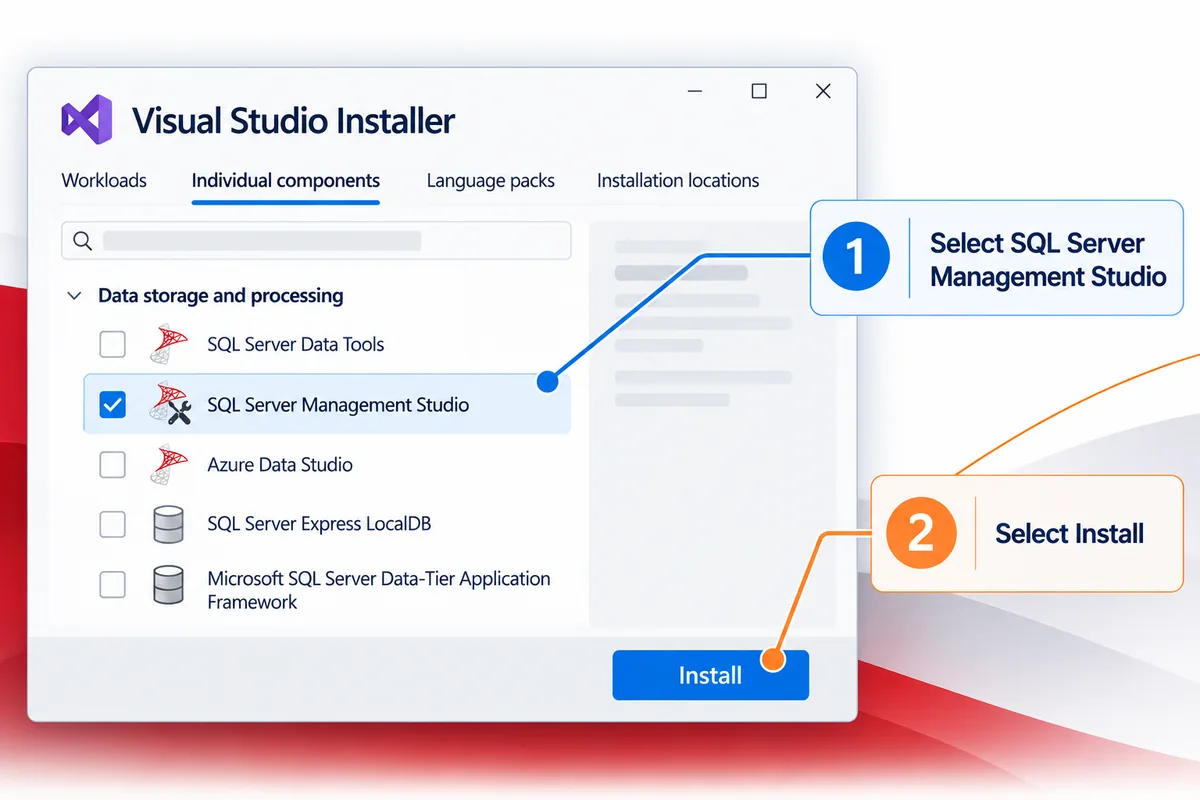
Here are the eight steps for a standard online install. Microsoft’s official SSMS installation walkthrough confirms that SSMS 22 uses a small bootstrapper that opens the Visual Studio Installer. There’s no standalone MSI for SSMS 22, even though some older install guides still show one.
Step 1: How do you prepare your Windows computer?
Sign in to Windows with an account that has administrator permissions. Save your open work, apply the latest Windows updates, and restart if an update or install is waiting. Then check your free disk space, especially on a small system drive. Disk Cleanup can help.
Already have an older version of SSMS? You don’t have to uninstall it. Microsoft lets you install SSMS 22 on a computer that already has an earlier major version, though features and connections can differ between versions.
Step 2: Where do you get the official SSMS download?
Go to Microsoft’s page to download and install SQL Server Management Studio. Select the Download SQL Server Management Studio 22 installer link.
Your browser saves a file named vs_SSMS.exe to your Downloads folder. This is the official bootstrapper. It’s a small file, not the full application, and that’s normal. It starts the process that downloads and installs everything else.
Skip third-party download sites that offer older SSMS packages or a so-called SSMS 22 MSI.
Step 3: How do you launch vs_SSMS.exe?
Open your Downloads folder and double-click vs_SSMS.exe. If Windows shows a User Account Control prompt, check that it’s the Microsoft installer you downloaded from the official page, then choose Yes.
You don’t need Visual Studio already installed for this to work.
Step 4: How do you complete the initial installer prompts?
Setup asks you to acknowledge the Microsoft Privacy Statement and the Microsoft Software License Terms. Read them, then select Continue.
The Visual Studio Installer opens next, with SQL Server Management Studio ready to install.
Step 5: Which SSMS workloads and components should you choose?
Workloads are optional. Look over the Workloads tab. For a basic management install, leave the extra workloads unselected and add one only when you need it. Microsoft’s example is the Hybrid and Migration workload, which helps you assess upgrade readiness and migrate data.
The Individual components tab lets you pick specific features instead of, or along with, a whole workload. Choose what your role needs. Every extra component adds to the download and install size.
Step 6: Can you choose a language or installation location?
Yes. On its first run, the installer tries to match your Windows language. To pick a different one, open the Language packs tab.
Check the install locations too. You can choose a different drive for SQL Server Management Studio or the Download cache only during the first install. Changing it later means reinstalling. If SSMS or Visual Studio is already installed, the Shared components, tools, and SDKs path is grayed out because all installs share it.
Step 7: How do you complete the SSMS 22 installation?
Select Install in the Visual Studio Installer. Status screens show the progress while setup downloads and installs the packages you picked. Stay connected to the internet during a standard online install, and restart if you’re asked to.
How long it takes depends on your computer, your internet connection, and the components you chose.
Step 8: How do you launch SSMS and verify the installation?
When setup finishes, select Launch if you see it, or open the Windows Start menu and search for SQL Server Management Studio. Signing in is optional and syncs your settings across devices. Once SSMS opens, go to Help > About to confirm the installed version.
If SSMS opens, the management app is installed. To check that it can reach a database, follow the connection steps below. If setup fails, start with Microsoft’s SSMS installation troubleshooting guide.
How do you install SSMS 22 with winget instead?
If you’d rather use the command line, Microsoft documents an SSMS winget install. Open Windows Terminal or Command Prompt and run:
winget install Microsoft.SQLServerManagementStudio.22Microsoft’s command-line installation documentation says winget installs only the core SSMS workload by default. You may see a prompt for administrator rights, because the Visual Studio Installer still needs them. If you use winget to upgrade an existing install, close SSMS first.
Use the Visual Studio Installer steps above if you want to review workloads, components, or languages before you install. Winget is handy for setting up many workstations the same way, but it doesn’t change SSMS licensing or install a SQL Server Database Engine.
For a computer with no internet access, Microsoft documents a separate SSMS offline installation process using a layout built on a connected computer. The small bootstrapper on its own isn’t a complete offline installer.
How do you connect SSMS to SQL Server after installation?
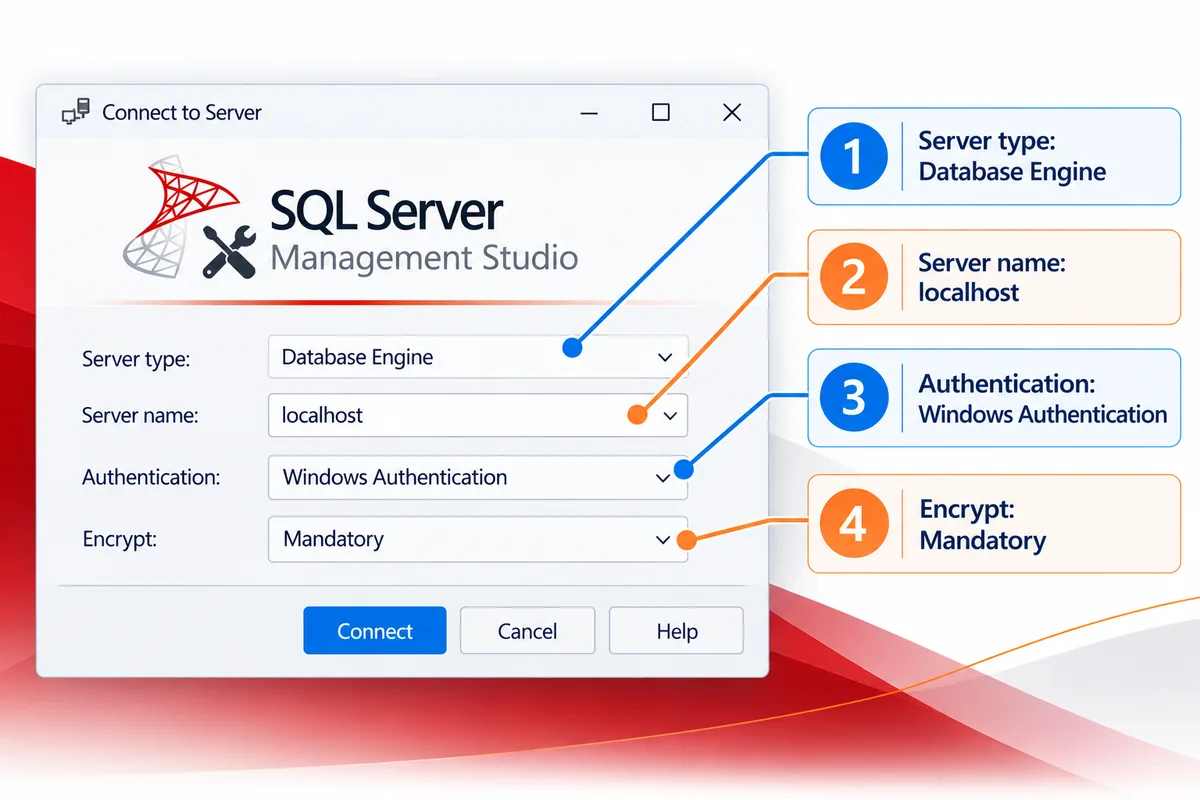
Connecting is a separate step from installing. You’ll need a running SQL Server instance, its server name or address, network access to it, and a login that’s allowed to connect.
- Start SSMS 22. Select Connect in Object Explorer to open the Connect to Server dialog.
- Enter the server name. Use
localhostfor a default instance on your own computer, the computer name for a server on your network, orSERVERNAME\INSTANCENAMEfor a named instance. - Choose authentication. Windows Authentication uses your Windows account. SQL Server Authentication needs a SQL login name and password. Which options work depends on how the server is set up.
- Review connection security. Encryption defaults to Mandatory, and Trust server certificate is unchecked. For production, keep it that way and use a properly configured server certificate instead of skipping certificate checks.
- Select Connect. Once you’re connected, expand Databases in Object Explorer to see the databases your account can access.
- Confirm the database engine version. Open New Query and run this read-only command:
SELECT @@VERSION;Microsoft has more detail in its SSMS connection quickstart.
Can’t connect? Check the instance name, whether the SQL Server service is running, network or firewall access, login permissions, and certificate setup. An untrusted certificate message doesn’t mean SSMS installed incorrectly. It means the connection security needs attention.
If there’s no database engine to connect to yet, use our SQL Server 2022 installation guide to set up that separate product.
How do you update SSMS 22?
Update SSMS through the Visual Studio Installer, not by hunting for an old MSI download:
- Save your work and close SSMS.
- Open the Windows Start menu, search for “installer,” and select Visual Studio Installer.
- Find your SSMS 22 installation. If you see Update available, select Update.
- Restart if you’re asked to. If not, select Launch to open SSMS.
You can also check from inside SSMS: select Help > Check for Updates. Microsoft’s SSMS update instructions cover both methods, plus update notifications and automatic update settings.
Microsoft supports only the latest release, so staying current gets you the newest fixes and compatibility improvements.
SSMS vs SQL Server: Do you still need a license?
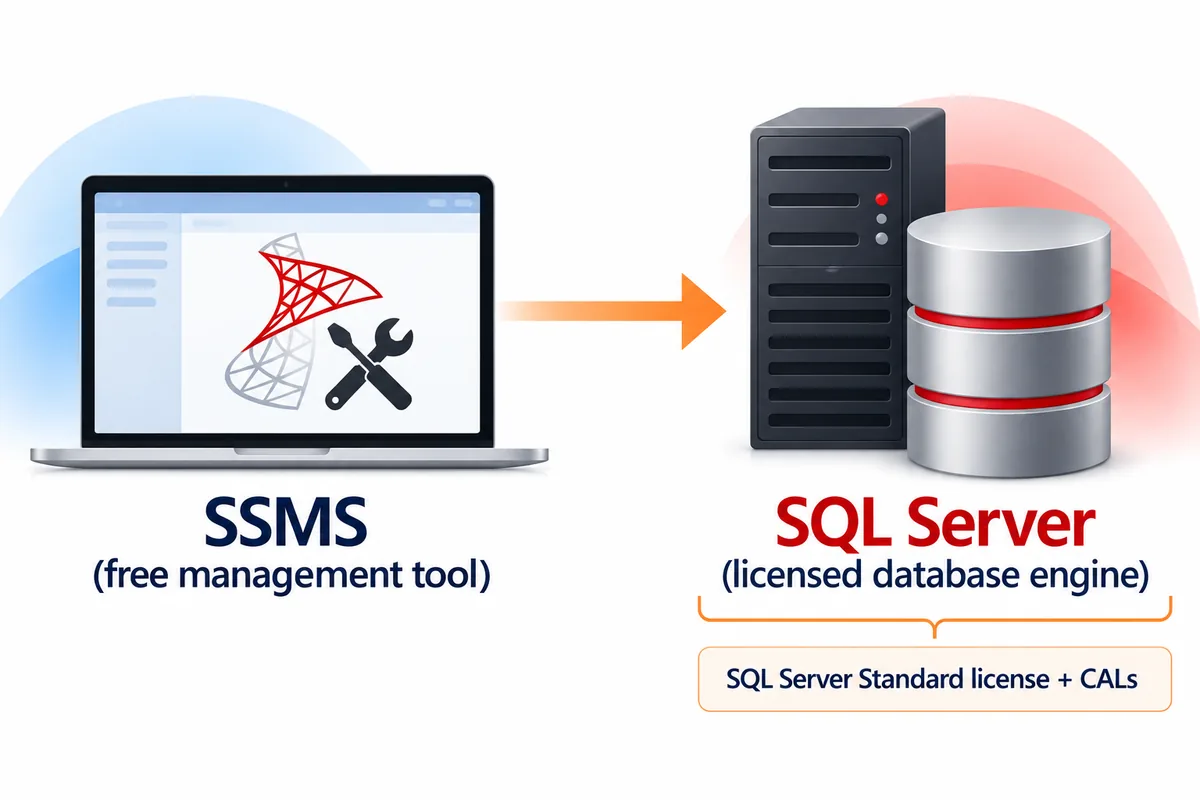
SSMS is free, but the right to run a SQL Server Database Engine is a separate licensing question. Downloading SSMS doesn’t give you SQL Server Standard licenses or client access licenses (CALs).
| Question | SSMS 22 | SQL Server 2022 or 2025 |
|---|---|---|
| What is it? | A Windows database management app | A database engine and server platform |
| What does it do? | Connects to and manages SQL Server instances | Stores, processes, and serves database data |
| Is it installed by the SSMS download? | Yes | No, it’s installed separately |
| Is a paid server license included? | No. SSMS itself is free | Depends on the edition and how you use it |
| When do you need it? | When you want a graphical SQL management tool | When you need to run a SQL Server database instance |
For production use, compare SQL Server 2022 Express, Developer, and Standard before you choose an edition. If you need commercial Standard licensing, see Microsoft SQL Server 2022 Standard or Microsoft SQL Server 2025 Standard Digital License.
SQL Server 2022 Standard can be licensed per core or under the Server + CAL model. The right one depends on how you deploy it and who connects. Read our SQL Server 2022 licensing guide, and look at the Microsoft SQL Server 2022 – 1 Client User CAL if a Server + CAL setup fits your needs. You can find more options in our SQL Server software category.
Why buy from Solved IT Services?
You don’t need to buy SSMS from us. Microsoft gives it away. If your project also needs licensed SQL Server software, Solved IT Services can help you find the right product and the right way to buy it.
- Microsoft Solutions Partner and certified reseller: We help businesses buy Microsoft software for their deployments.
- More than 12 years in business: Our team knows software sales and licensing.
- Many industry relationships: We use them to help customers source the software they need.
- Fast digital delivery: Estimated delivery is within 30 minutes or less from the time of purchase.
- US-based 24/7 support: Our team is here around the clock to help with purchases and installations.
If you run into trouble installing or activating something you bought from us, contact our support team and we’ll fix it.
We guarantee full installation and full activation of every product we sell, or your money back. See the SIS Guarantee.
The guarantee covers products you buy from Solved IT Services. SSMS itself stays a free download from Microsoft.
What are the most common questions about installing SSMS 22?
Yes. SQL Server Management Studio is free for personal or enterprise use. Download it from Microsoft’s official install page. The database engine you manage with it may need its own SQL Server license.
No. SQL Server Management Studio 2022 is a common search phrase, but Microsoft’s current management app is called SSMS 22. It connects to SQL Server 2022, which is the database engine release.
No. The vs_SSMS.exe bootstrapper opens the Visual Studio Installer, but you don’t need Visual Studio itself. Follow the SSMS installer prompts to install the management app.
Yes. Microsoft’s SSMS system requirements say SSMS 22 works with SQL Server 2014 and later and list SQL Server 2025 as the highest supported version. For older SQL Server versions, Microsoft points to the SSMS release history.
Yes, with some prep. Create an offline layout on a computer with internet access, copy it to the offline computer, and follow Microsoft’s offline install steps. The offline computer also needs the Visual C++ v14 Redistributable and the required certificates. Downloading vs_SSMS.exe alone doesn’t give you all the installation files.
Installing and connecting are separate. Check the server name, whether the instance is running, the authentication method, firewall rules, and the TLS certificate setup. If the error says the certificate chain isn’t trusted, look at the server’s certificate configuration. It isn’t an installer problem.
Need help with SQL Server software or licensing?
If SSMS is installed and your business still needs a SQL Server database engine, request a quote for your deployment. You can also browse our SQL Server product selection or email support@solveditservices.com for help choosing the right software and checking installation requirements.