

New Outlook vs Outlook 2024: What Changes and How to Keep Classic Outlook
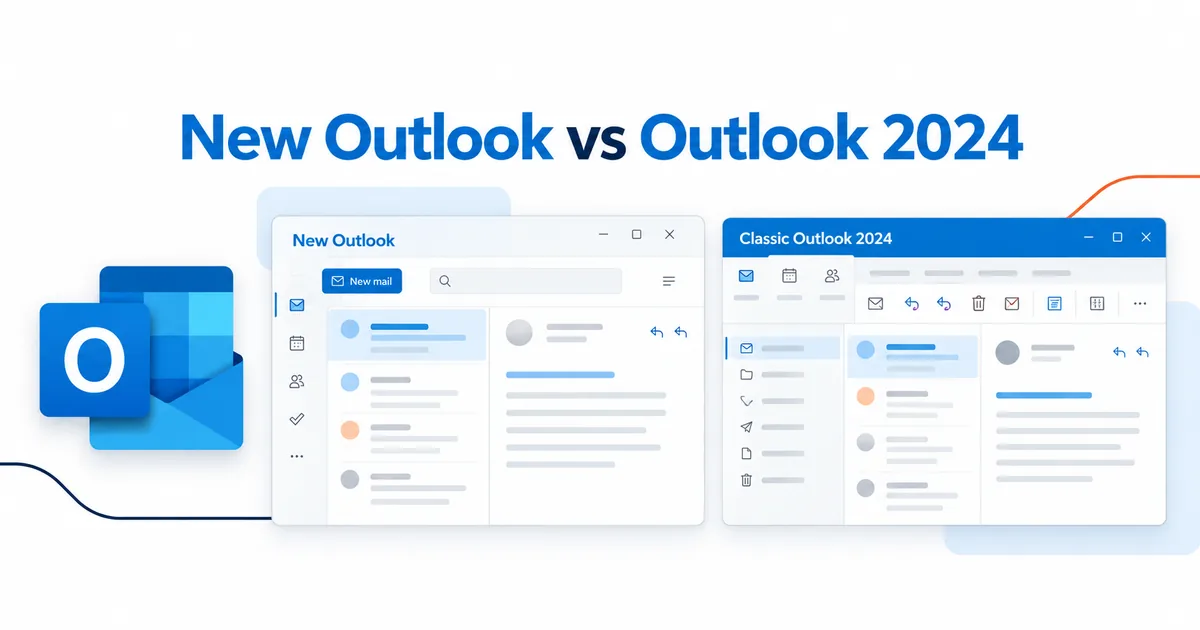
New Outlook for Windows is Microsoft’s newer email and calendar app, while Outlook 2024 is a one-time-purchase version of the classic Outlook desktop application. You can still use classic Outlook if you need familiar tools, local data files, or integrations unavailable in the newer app. Microsoft says existing classic Outlook installations under perpetual and subscription licensing will remain supported until at least 2029.
The important distinction is the app you use versus the license you own. New Outlook and classic Outlook have different features, and installing new Outlook does not give you a license for Outlook 2024.
What is the new Outlook for Windows?
The new Outlook for Windows is Microsoft’s redesigned email and calendar app for Windows PCs. It brings email, calendars, contacts, and account settings into a modern interface that resembles Outlook on the web. It supports common account types, including Outlook.com, Microsoft 365 work or school accounts, Gmail, Yahoo, iCloud, and other supported mail services.
For personal email use, the app is available without purchasing a classic Outlook license. Some work and school features require appropriate Microsoft 365 licensing. You can download new Outlook through the Microsoft Store or open it if it is already installed with Windows. Microsoft documents both methods in its getting-started instructions.
New Outlook offers a streamlined layout, integrated calendar, and email-management features such as pinning messages and snoozing conversations. Some advanced capabilities depend on the account and subscription you use. Because Microsoft updates the app regularly, its features continue to change.
The key trade-off: new Outlook is convenient for everyday email, but it is not a complete replacement for every classic Outlook workflow. If your business relies on desktop automation, particular add-ins, or older mailbox procedures, check compatibility before moving.
What is classic Outlook (Outlook 2024)?
Classic Outlook is the established desktop Outlook application for Windows. It includes a traditional ribbon, detailed mail and calendar settings, support for Outlook Data Files, and compatibility with many established business workflows.
Outlook 2024 is one version of classic Outlook, available as a standalone, one-time-purchase application for a Windows PC. Classic Outlook can also be included with eligible Microsoft 365 subscriptions and Office suites. The phrase classic Outlook describes the app experience, not one specific licensing arrangement.
A one-time purchase means you buy the licensed application rather than subscribe to Microsoft 365 to obtain that edition. It does not mean that an Outlook license includes an email address, Exchange Online mailbox, or Microsoft 365 cloud services. You still need an email provider and an account that the application supports.
If you already own a qualifying desktop Office license, first check what is installed before buying another copy. Our guide on how to check your Office version can help you identify the edition you have. In classic Outlook, you can also select File > Office Account to view product information, as explained in Microsoft’s version-identification guide.
New Outlook vs classic Outlook: What is different?
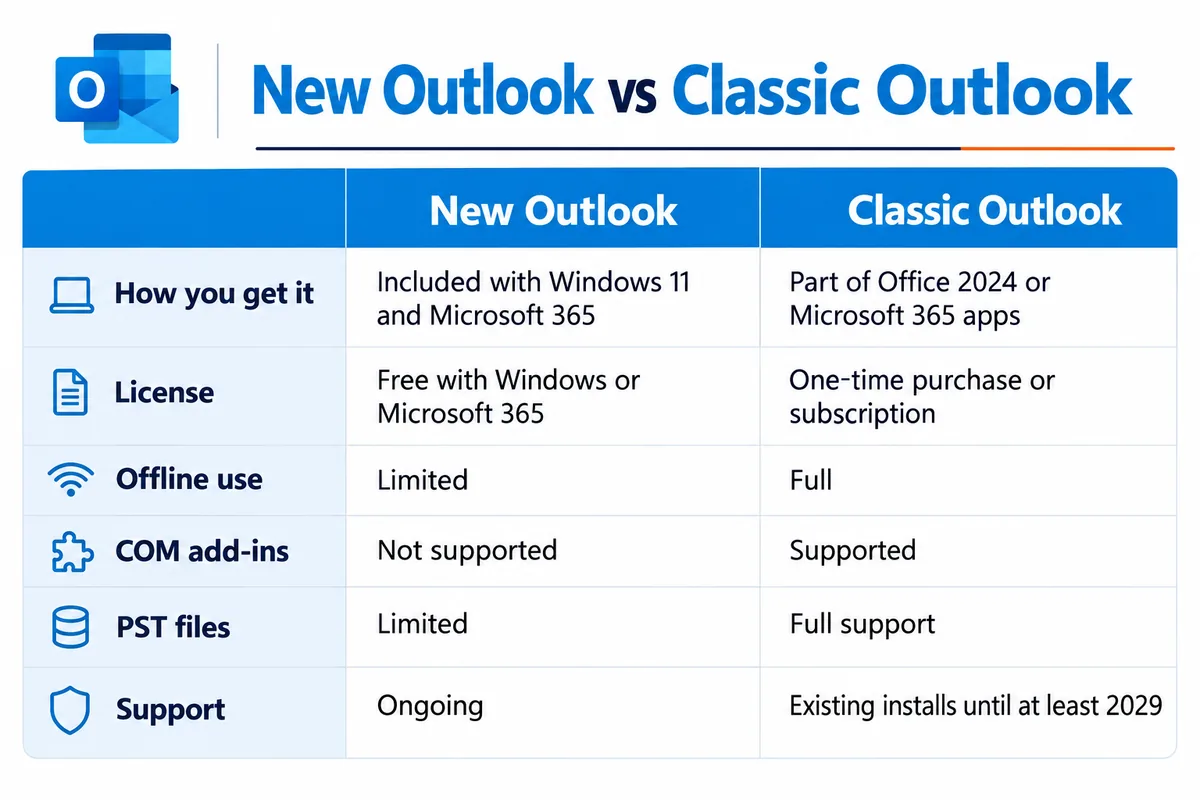
The new Outlook vs classic Outlook decision is mainly about feature compatibility, preferred workflow, and licensing. Both applications can handle everyday email and calendars, but their capabilities are not identical.
| Feature | New Outlook for Windows | Classic Outlook / Outlook 2024 |
|---|---|---|
| Main design | Modern, web-influenced interface | Traditional Windows desktop interface |
| Email and calendar | Supported | Supported |
| Licensing | Free for supported personal use; work features may require qualifying licensing | Outlook 2024 available as a one-time purchase; other classic editions have different licenses |
| Offline use | Available with limitations and local-sync settings | Established offline workflows and local data support |
| Outlook Data Files (.pst) | Partial support, with requirements that vary by operation | Broad, established .pst-file support |
| Traditional COM add-ins | Not supported | Supported |
| VBA macros | Not supported | Supported |
| Updates | Ongoing feature development | Fixed-release product with maintenance and security updates during support |
| Best fit | General email, calendars, simpler workflows | Users who need classic tools, established integrations, or a fixed-version license |
Microsoft publishes a detailed new Outlook and classic Outlook feature comparison. Review it if a specific feature is essential to your daily work.
Can both versions work offline?
Yes, but the offline experience differs. New Outlook can store selected messages, calendar information, and contacts on your device. Its available offline actions and the amount of mail stored depend on its settings and current feature support. Classic Outlook offers more established offline capabilities for users who manage local mailbox data.
For configuration steps and current restrictions, see Microsoft’s offline Outlook instructions. Avoid assuming new Outlook requires a constant internet connection or that its offline features match classic Outlook exactly.
Do both versions support .pst files and add-ins?
Not equally. New Outlook has gained .pst capabilities, but Microsoft still describes support as partial. Certain operations have specific prerequisites, including a compatible classic Outlook installation and account requirements. If archived mail is important, read Microsoft’s .pst-file requirements before switching.
Classic Outlook remains the safer choice for workflows that depend on traditional COM add-ins or VBA macros. New Outlook uses a different add-in model and does not support those legacy technologies. Some tools have web-add-in replacements, but you should verify your exact add-in rather than assume compatibility.
How long will classic Outlook be supported?
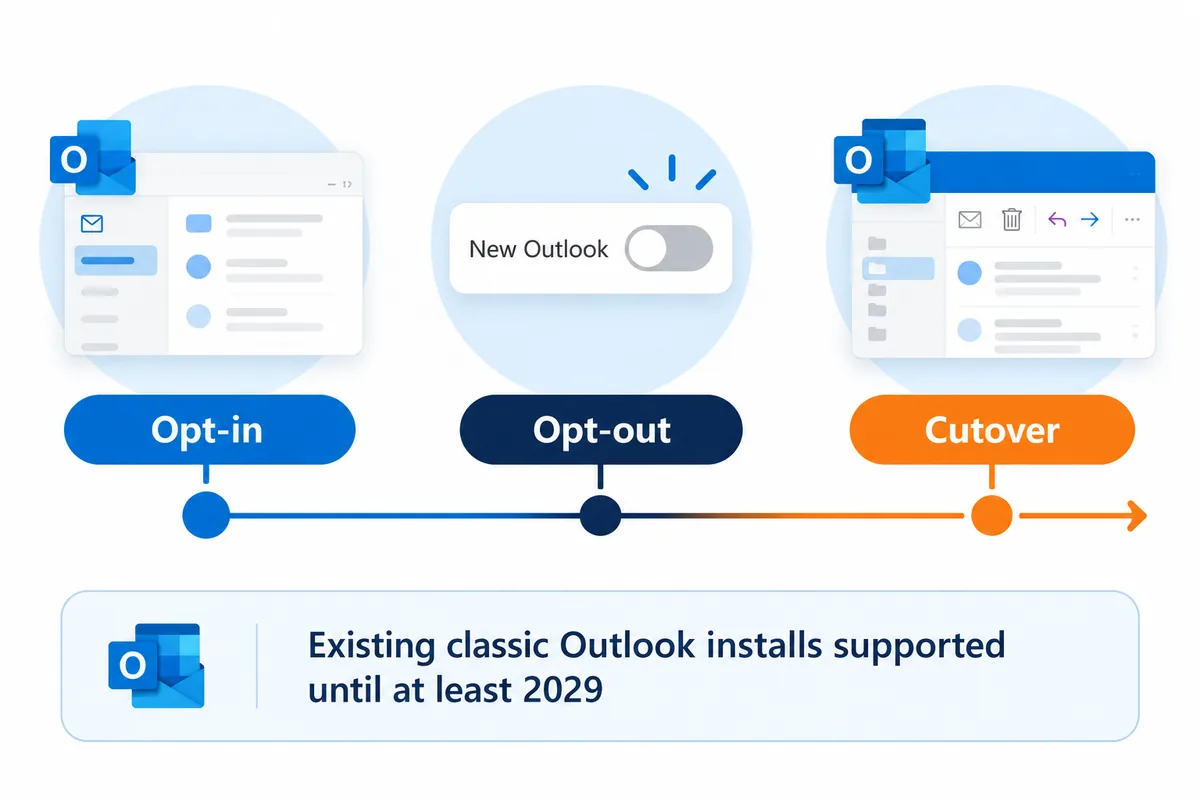
Microsoft says existing classic Outlook installations licensed through perpetual purchases or subscriptions will continue to be supported until at least 2029. That statement appears in its official migration-stage guidance.
Microsoft describes three stages for the new Outlook transition:
- Opt-in: Users can choose to try new Outlook and return to classic Outlook.
- Opt-out: New Outlook becomes the default for affected users, but they can return to classic Outlook.
- Cutover: In affected subscription deployments, switching back is no longer available through the migration process.
The schedule and automatic-switch experience vary by customer segment and license. Microsoft states that administrators will receive at least 12 months’ notice before cutover in production environments. Its migration guidance also distinguishes existing classic Outlook installations from new Microsoft 365 subscription deployments.
Separately, Microsoft’s Office and Windows support matrix lists October 2029 for Office LTSC 2024 support. That date describes the LTSC product, not an automatic universal cutoff for every classic Outlook installation or every retail license.
Bottom line: moving to new Outlook is not the same as losing access to a properly licensed classic Outlook installation today. Support and deployment rules still depend on your product and organization.
How do I switch back to classic Outlook?
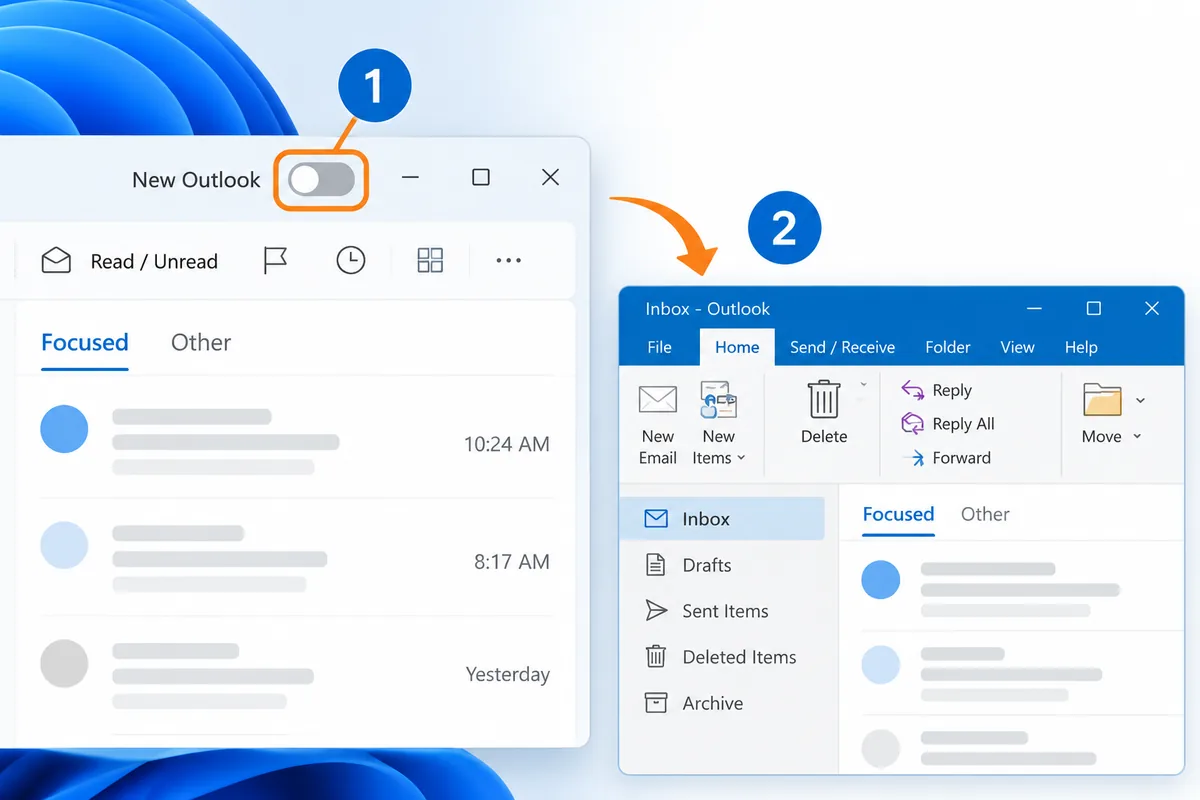
If classic Outlook is installed on your computer and the switch-back option is available, you can normally return without uninstalling new Outlook.
- Open new Outlook for Windows. Confirm you are in the newer application, which has a Settings gear in the upper-right area.
- Find the new Outlook toggle. It normally appears near the upper-right corner of the app.
- Choose “Switch back to classic Outlook.” Microsoft may ask you to provide feedback before the classic application opens.
- Select “Use classic Outlook this time” if offered and you only need it temporarily. This opens classic Outlook without permanently changing the preference.
- Pin the correct app. Search Windows Start for Outlook (classic) and pin it to Start or the taskbar for easier access.
- Check your accounts, folders, and data. Confirm your expected messages, calendars, and local files are present before changing any profiles or uninstalling applications.
These options and their behavior are described in Microsoft’s official switch-back guide. Microsoft also explains how to run both Outlook apps side by side.
What if the switch-back toggle is missing?
First, search your Start menu for Outlook (classic). The toggle may be absent because classic Outlook is not installed, the app was obtained through a different setup path, or your organization’s administrator controls the experience. A Windows PC with new Outlook preinstalled does not automatically include a licensed copy of Outlook 2024.
If you own a qualifying classic Outlook license, use Microsoft’s classic Outlook installation guidance. If your account is managed by an employer, ask your IT administrator before changing app settings. Avoid editing the Windows registry unless you understand the risks and have followed official instructions.
Can I buy Outlook 2024 as a one-time purchase?
Yes. If you want classic Outlook without purchasing a Microsoft 365 subscription for the desktop app, Outlook 2024 is available as a standalone license. Microsoft’s Outlook licensing documentation explicitly identifies Outlook 2024 stand-alone licenses.
You have several ways to purchase classic Outlook for a PC through Solved IT Services:
- Outlook only: Choose Microsoft Outlook 2024 for PC if email and calendar management are your primary needs.
- Outlook with core Office apps: Choose Microsoft Office Home & Business 2024 for PC if you also need Word, Excel, and PowerPoint. Microsoft confirms that Home & Business 2024 includes classic Outlook.
- A broader Office package: Review Microsoft Office 2024 Professional Plus and confirm the included apps, licensing terms, and compatibility for your intended use before ordering.
A standalone Outlook 2024 purchase provides the application license described by that product. It does not include a hosted business mailbox, a Microsoft 365 subscription, or future major-version upgrades. For more detail about how Office 2024 purchases work, see Microsoft’s Office 2024 FAQ.
Before ordering, check your Windows PC, current Office installation, business account requirements, and any add-ins you need. If an employer controls your computer, confirm that the license and installation method are approved by its IT team.
Which should you use?
Choose new Outlook if you mainly read and send email, schedule meetings, manage common personal or work accounts, and prefer a simplified interface. It is a practical starting point for someone who does not need older desktop integrations or a specific fixed-release Office license.
Choose classic Outlook 2024 if your work depends on COM add-ins, VBA macros, established .pst workflows, or familiar desktop controls. It is also a good option when you want an eligible one-time-purchase license for the desktop application rather than a subscription-based desktop-app entitlement.
Keep both available during testing if you’re uncertain. Open your most important mailboxes, check shared-calendar behavior, test archived messages, and verify the add-ins used by your business before selecting a default. Microsoft supports a side-by-side approach during the transition.
For a small business, the right choice is the one that handles your actual email workflow reliably. Do not purchase a new license merely because Windows displays new Outlook. Check whether you already have the classic application and an appropriate license first.
Why buy from Solved IT Services?
When you choose a one-time-purchase Outlook or Office product, getting the correct edition and a successful activation matters as much as choosing the right app.
Solved IT Services offers:
- Microsoft Solutions Partner and certified reseller credentials.
- More than 12 years in business helping customers with software licensing.
- Many industry relationships to help customers navigate product and licensing needs.
- Estimated delivery within 30 minutes or less from the time of purchase, depending on order processing.
- US-based 24/7 support for questions and assistance.
We guarantee full installation and full activation of every product we sell, or your money back. See the SIS Guarantee.
Our team can help you distinguish new Outlook from classic Outlook, check which Office edition fits your PC, and identify the appropriate purchasing option.
Frequently asked questions about new Outlook
New Outlook for Windows is available without buying Outlook 2024 for supported personal email use. Work or school use and particular premium capabilities may require an eligible Microsoft 365 license. A free new Outlook installation is not a license for the separate classic Outlook 2024 desktop application.
Yes. Microsoft Outlook 2024 is available as a one-time-purchase desktop application. You still need an email account with a supported provider, and specialized Exchange or cloud capabilities may have separate service and licensing requirements. Purchasing Outlook does not create a hosted business email service.
Microsoft’s switch-back guide describes the toggle as changing which app opens, not as removing mail. However, accounts, locally stored .pst files, drafts, and settings can behave differently between apps. Before switching, verify that important mail is synchronized and back up local data. Do not remove an Outlook profile or uninstall the older application until you have checked your content.
Yes, where both apps are available and appropriately licensed. Microsoft provides instructions for using them side by side and pinning each to the Windows taskbar. This is useful when you want to try the new interface without interrupting a classic Outlook workflow.
You can review Outlook 2024 for PC at Solved IT Services. If you need the mail application plus Word, Excel, and PowerPoint, consider Office Home & Business 2024 for PC instead. Check your PC and license requirements before selecting an edition.
No. Outlook for Mac and new Outlook for Windows are separate applications with different platform requirements and feature details. The Outlook 2024 for PC product linked here is intended for Windows. If you use a Mac, confirm the Mac-compatible edition before buying.
Need help choosing Outlook 2024 or returning to classic Outlook?
If you want classic Outlook for one PC, explore Microsoft Outlook 2024 for PC. For a business purchase, multiple licenses, or help confirming the correct edition, request a quote or contact support@solveditservices.com. We can help you choose a product that fits your existing email setup and licensing requirements.