


Copilot Windows 11: What It Does and How to Turn It Off
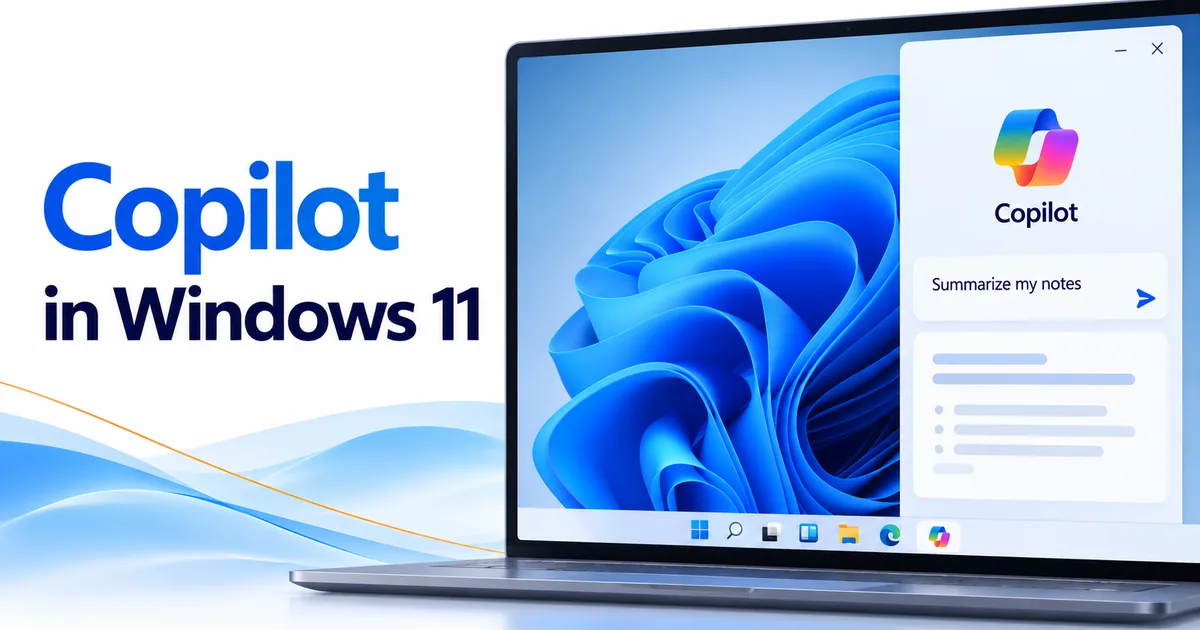
Copilot in Windows 11 is Microsoft’s AI assistant app. If you’re looking up Copilot Windows 11 settings, here’s the short answer: open the app from the taskbar, the Start menu or the Copilot key on supported keyboards. To get it out of your way, you can remap the Copilot key in Settings or uninstall the app when Windows offers that option. Microsoft says, “If your PC runs Windows 11 it’s already compatible with Copilot.”
What is Copilot in Windows 11?
Microsoft Copilot is an AI assistant that runs as an app on your Windows 11 PC. Instead of digging through menus, you type or say what you need in everyday language and get an answer back. It’s handy for getting started on a task, learning about something new, or drafting written content.
Think of it as an assistant you ask, not a replacement for Windows. Windows still runs your apps, stores your files and manages your device. Copilot gives you a separate, conversational way to ask questions and work with information.
The names can get confusing. Microsoft Copilot usually means the AI assistant itself. Copilot for Windows describes using that assistant on a Windows PC. A Copilot+ PC is a category of computers built for extra AI features. Seeing a Copilot icon doesn’t mean your PC has every Copilot+ PC feature.
What can Copilot do on Windows 11?
For most people, the real value of Microsoft Copilot AI is that you can talk to it the way you’d talk to a person. Describe what you need, add some context, and refine the request until the answer fits. There’s no special command language to learn. The examples below show common ways people use an AI assistant. They aren’t a promise that it can control every Windows program.
Can Copilot help with everyday writing and research?
Yes. You can ask Copilot to outline a short document, suggest better wording for an email, explain a technical term, or weigh the pros and cons of an idea. A small-business owner, for example, might ask for a plain-English explanation of a Windows feature before deciding whether employees need it.
Treat the answers as drafts or starting points, especially for licensing decisions, technical settings and business documents. Check anything important against the software publisher’s own documentation before you act on it. And don’t share confidential customer or company information unless your organization’s policies allow it.
Can Copilot automatically change Windows settings?
Don’t assume it will. Microsoft says Copilot on Windows can help you adjust settings and will guide you to the relevant option in Windows Settings. Copilot explaining how a feature works is not the same as Windows applying a change, and some actions still need you to complete them yourself.
For the tasks in this article, the reliable route is the Windows Settings paths Microsoft documents. That matters when you want to change what a keyboard key does or remove an installed app. Those are Windows configuration tasks, not chat requests.
How do you open Copilot in Windows 11?
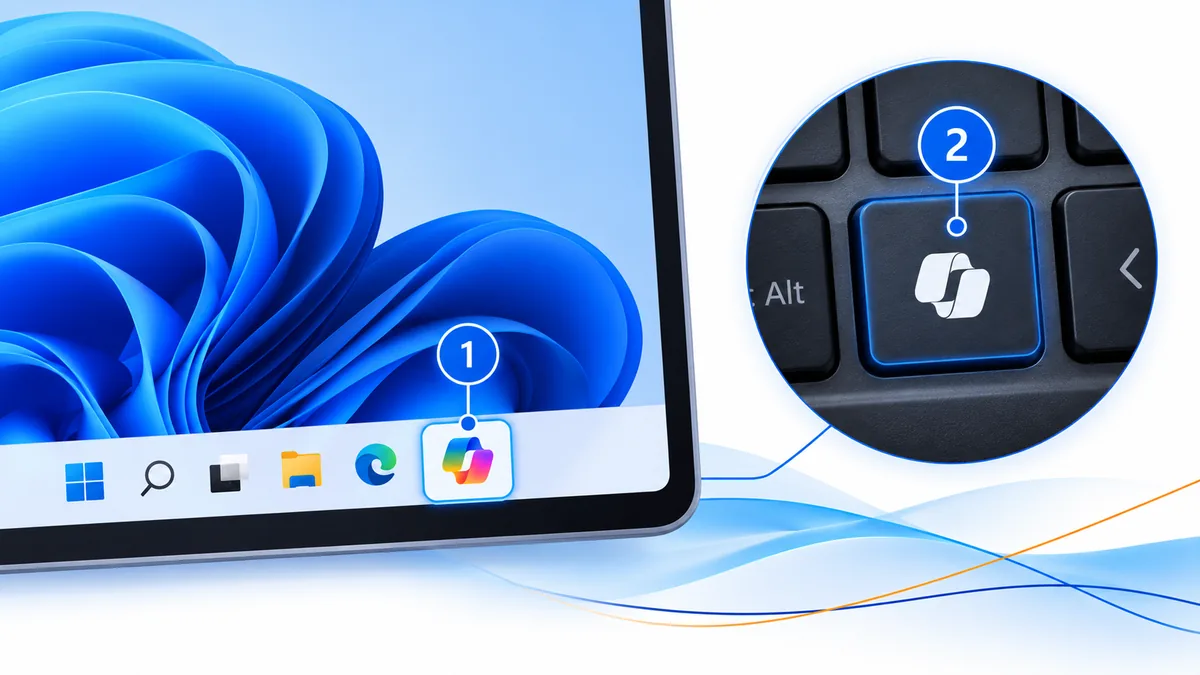
According to Microsoft’s guide to accessing Copilot on Windows, you can find the Copilot app pinned to the taskbar or on the Start menu. You can also press the Copilot key, if your keyboard has one, or use the Windows key + C shortcut. No taskbar icon? Check the Start menu. Microsoft says the Copilot app should already be installed on new Windows 11 PCs, and if it isn’t on yours, you can download it from the Microsoft Store.
Microsoft explains that manufacturers began releasing dedicated Copilot keys on some Windows 11 devices in 2024. On some keyboards, the Copilot key takes the place of Right Ctrl or the Context menu key. Not every Windows 11 keyboard has one.
A Copilot key is a handy shortcut, not proof that you own an AI PC. Having one doesn’t mean the computer has the hardware needed for every Copilot+ PC feature. And a computer without the key can still run the Copilot app.
How do you turn off or uninstall Copilot in Windows 11?
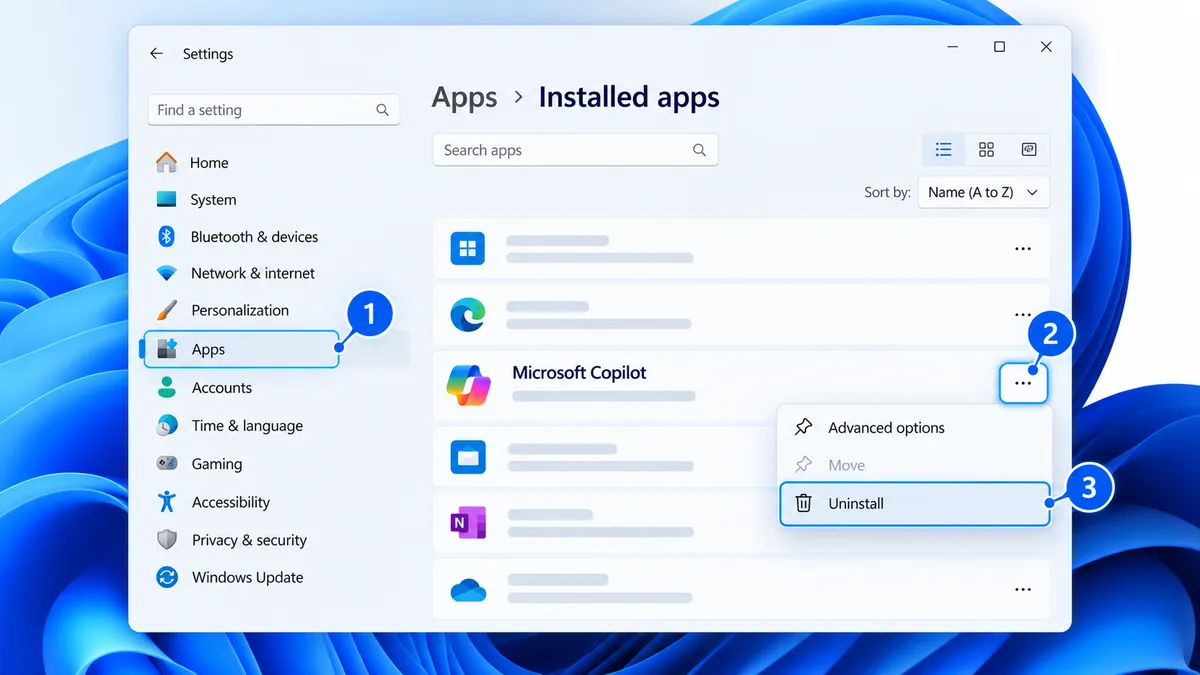
If you want Copilot out of your daily routine, start by deciding which problem you’re solving. Removing the app and changing what the Copilot key does are two different things. Uninstalling removes the app, when Windows allows it. Remapping the key changes what the key does but leaves the app installed.
There’s no single, one-click switch that turns off Copilot on every version of Windows 11. Microsoft’s app-removal instructions are general Windows steps, and some apps can’t be uninstalled from Settings. Go by the options your own computer shows you.
How do you uninstall Copilot Windows 11 when removal is available?
Microsoft’s Windows app uninstall instructions give these steps:
- Select Start > Settings > Apps > Installed apps.
- Find the Copilot app in the list.
- If it’s there and the option is available, select More (…) > Uninstall.
Important: These are Microsoft’s general app-removal steps, not Copilot-specific ones. Microsoft doesn’t say the app shows up under the same name, such as “Microsoft Copilot,” on every Windows 11 build, or that every installation lets you remove it. Microsoft also notes that some apps are built into Windows and can’t be uninstalled. If you don’t see the app or the Uninstall option, don’t try to force it.
Microsoft documents a second route too: select Start > All apps, find the app, then press and hold (or right-click) it and select Uninstall, if that option appears. Neither method works for every built-in or managed app. On a work computer, your IT administrator may also control what you can remove.
How do you turn off Copilot without uninstalling it?
If your main problem is opening Copilot by accident from the keyboard, changing what the Copilot key does may solve it on supported devices. Keep in mind that this isn’t the same as turning off Copilot entirely or removing the app.
How do you change what the Copilot key does?
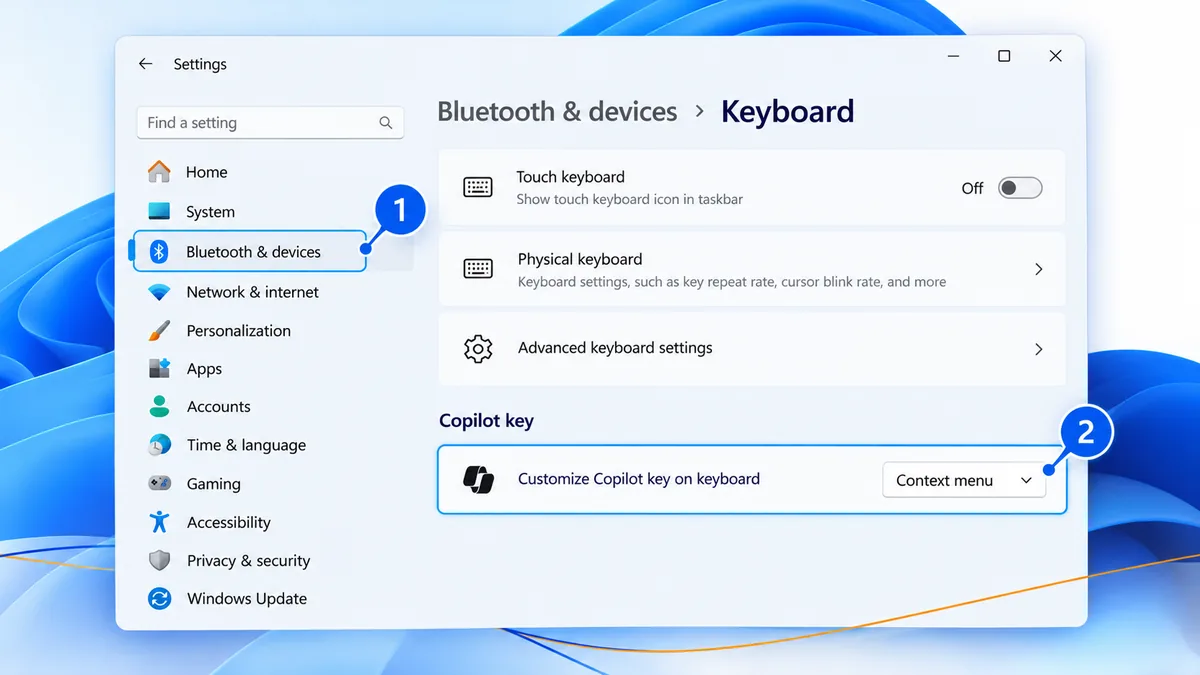
On some keyboards, the Copilot key sits where Right Ctrl or the Context menu key used to be. That’s a hassle if you rely on the original key for keyboard shortcuts or accessibility tools.
Microsoft’s Copilot key guidance points to this setting:
- Open Settings in Windows 11.
- Go to Bluetooth & devices > Keyboard.
- If your device offers the remapping option, set the Copilot key to work as Right Ctrl or Context menu.
Microsoft says you’ll find this setting there when it’s available, and that configuration options vary by device manufacturer. The setting and its choices may not appear on every computer. If you can’t find it, that doesn’t mean something is wrong with Windows. Your device maker may handle the key through its own settings instead.
One shortcut quirk is worth knowing: Microsoft warns that when the Copilot key is remapped to Right Ctrl, shortcuts that use Right Ctrl with the Windows key or Shift won’t work as normal. Microsoft recommends using Left Ctrl for those combinations.
If your device has its own settings to remap or manage the Copilot key, Microsoft advises using either the Windows setting or the device setting, not both.
Do you need a Copilot+ PC to use Copilot?
Microsoft’s Windows 11 specifications page answers this directly: “If your PC runs Windows 11 it’s already compatible with Copilot.” Microsoft adds that unique Copilot+ PC experiences, like improved Windows search and agent in Settings, need a Copilot+ PC. The Copilot+ name refers to a category of hardware with dedicated AI processing and access to extra Windows experiences.
According to Microsoft’s Copilot+ PCs for business overview, these machines include a powerful neural processing unit, or NPU, that can run more than 40 trillion operations per second (TOPS). Microsoft lists features such as Click to Do, Recall and Live Captions with translation as Copilot+ PC experiences. Availability depends on the device, region, software updates and other requirements.
| Capability | Regular Windows 11 PC | Eligible Copilot+ PC |
|---|---|---|
| Copilot assistant app | Available where the app is supported | Available where the app is supported |
| Dedicated Copilot key | Depends on the keyboard or device | Depends on the keyboard or device |
| Click to Do | Not a standard Copilot app feature | Available on supported configurations |
| Recall (preview) | Not a standard Copilot app feature | Available on supported configurations, with extra requirements |
| Live Captions with AI translation | Copilot+ translation not guaranteed | Available on supported configurations |
| Office 2024 desktop applications | Separate software purchase or license | Separate software purchase or license |
What are Click to Do, Recall, and Live Captions?
Click to Do looks at text or images on your screen and suggests next steps, such as summarizing or rewriting text. Recall, which Microsoft labels as a preview, helps you find something you saw earlier when you describe what you remember. It’s turned off by default and requires Windows Hello Enhanced Sign-in Security. Live Captions with translation can translate audio and video into English captions from more than 40 languages on Copilot+ PCs.
These aren’t other names for the regular Copilot chat app. Each one has its own device requirements, and some features depend on region, language, software version or your organization’s settings. A Windows 11 Pro license on its own doesn’t turn an ordinary PC into a Copilot+ PC.
Want to know more about AI-focused computers and how the hardware differs? Read our guide to what an AI PC is.
How does Copilot work with Office 2024?
Copilot in Windows 11 and Office 2024 do different jobs. Copilot is an AI assistant you can ask for ideas, explanations or draft text. Office 2024 gives you the familiar desktop apps for creating and editing documents, spreadsheets, presentations and more.
You can use the Copilot app and Office 2024 on the same Windows PC. Microsoft says its Microsoft 365 plans for home or business now include Copilot, bringing AI-powered features to desktop apps like Word, PowerPoint and Excel. The same page describes Office 2024 as a one-time purchase that gets security updates but no new features. That difference matters if you’re comparing a one-time purchase with a subscription.
Looking for a standalone desktop suite? Take a look at Microsoft Office 2024 Professional Plus License. If you need the operating system too, see our Microsoft Windows 11 Pro and Office 2024 Pro Plus Digital License bundle.
The better question to ask before you buy: do you need Windows for the computer, Office apps for everyday work, or specific Copilot+ features? Those are separate decisions. Our Microsoft 365 Premium vs. Office 2024 comparison covers the productivity software choice in more detail, without treating the Windows Copilot app as an Office license.
Why buy from Solved IT Services?
When you buy Windows or Office, what matters is getting the right product and help installing it, not whether your keyboard has an AI key. Solved IT Services helps individuals and businesses pick the Microsoft software that fits what they actually need, including Windows 11 Pro and Office 2024.
Solved IT Services is a Microsoft Solutions Partner and certified reseller, with more than 12 years in business and many industry relationships across the software industry. We help customers find the right products and understand exactly what’s included in their purchase.
We offer estimated delivery within 30 minutes or less from the time of purchase, and our US-based 24/7 support team is here whenever you need help with your software.
We guarantee full installation and full activation of every product we sell, or your money back. See the SIS Guarantee.
If you’re upgrading a computer for work, take a look at our Microsoft Windows 11 Pro Digital License. Not sure which edition or product combination fits your device? Contact us before you order. We’ll help you sort out the difference between an operating system license, desktop productivity apps and extra AI hardware requirements.
Frequently asked questions about Copilot in Windows 11
Microsoft says the Copilot app should already be installed on new Windows 11 PCs. If it isn’t on yours, you can download it from the Microsoft Store. You’ll usually find it pinned to the taskbar or on the Start menu, and some keyboards have a dedicated Copilot key. Neither the key nor the icon means the PC supports every Copilot+ feature.
No. Copilot is an AI assistant app, while a Copilot+ PC is a category of computer with hardware built for extra AI features. Microsoft says that if your PC runs Windows 11, it’s already compatible with Copilot. Features such as Click to Do and Recall need eligible hardware and have other requirements too.
If the app appears in Settings > Apps > Installed apps and Windows offers the option, select More > Uninstall. Microsoft notes that some apps can’t be uninstalled from the Settings app, and some apps built into Windows can’t be uninstalled at all. Not every Windows 11 installation shows the same Copilot entry or uninstall option.
On supported devices, you can remap the Copilot key in Settings > Bluetooth & devices > Keyboard. Depending on your device, you may be able to set it to work as Right Ctrl or the Context menu key. This changes what the key does. It doesn’t remove the Copilot app.
Microsoft doesn’t list Windows 11 Pro as a requirement for the Copilot app. Windows 11 Pro on its own also doesn’t add Copilot+ hardware features. Choose your Windows edition based on what you need from the operating system, then look at AI features separately.
Where can you get help choosing Windows 11 software?
If you want the Copilot app, start by checking what’s already on your Windows 11 PC. If you want Click to Do, Recall or translated Live Captions, check whether your computer meets Microsoft’s Copilot+ PC requirements before you buy anything.
Shopping for an operating system? Explore the Microsoft Windows 11 Pro Digital License at Solved IT Services. Have questions about Windows editions, Office compatibility or which product to order? Email support@solveditservices.com or request a quote for guidance.